
User profiles
User profiles are required to link certain activities inside Accessibility Tools to specific users.
In Accessibility Tools, the user profile is required for running an audit and producing audit reports. The details of the user are included in the audit report.
We are currently working on a more complex version of the Accessibility Tools that will support multiple profiles, with different layers of access within the app. At this point, once you have added a profile, the Add profile button will no longer be available; in addition, the created profile cannot be deleted as this might be attached to an audit report and cannot be removed.
If you need to replace the existing user you should only modify the existing profile with the updated user information.
Create a user profile
- On the left-hand side navigation pane, go to
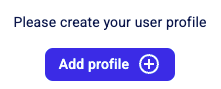
 Settings > Profile and click Add profile.
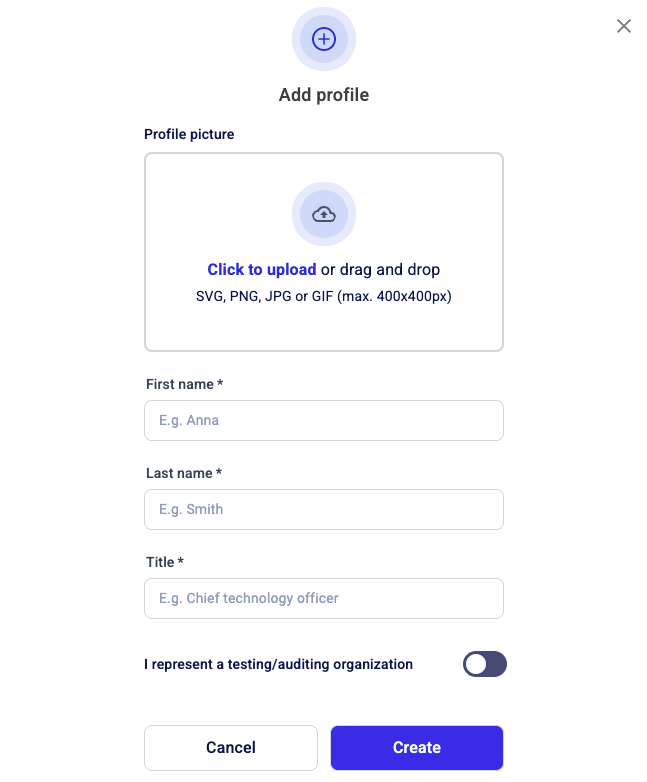
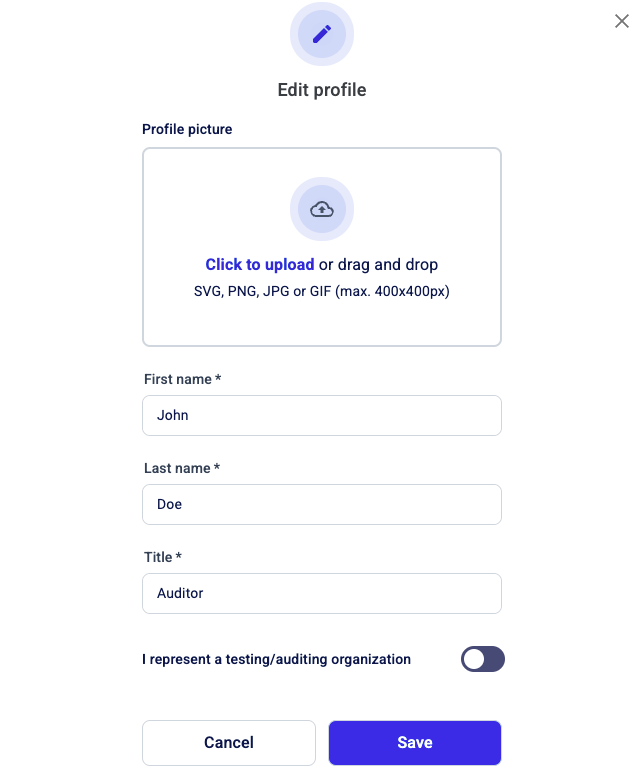
- In the Add profile wizard, configure the fields, as follows:
- Profile picture: Upload a profile picture in the format indicated on the screen (either browse for it or use drag and drop).
- First and last name (mandatory): Fill in the details of the owner of the account.
- Title (mandatory): Enter the job title of the account owner (which will be displayed in the audit report).
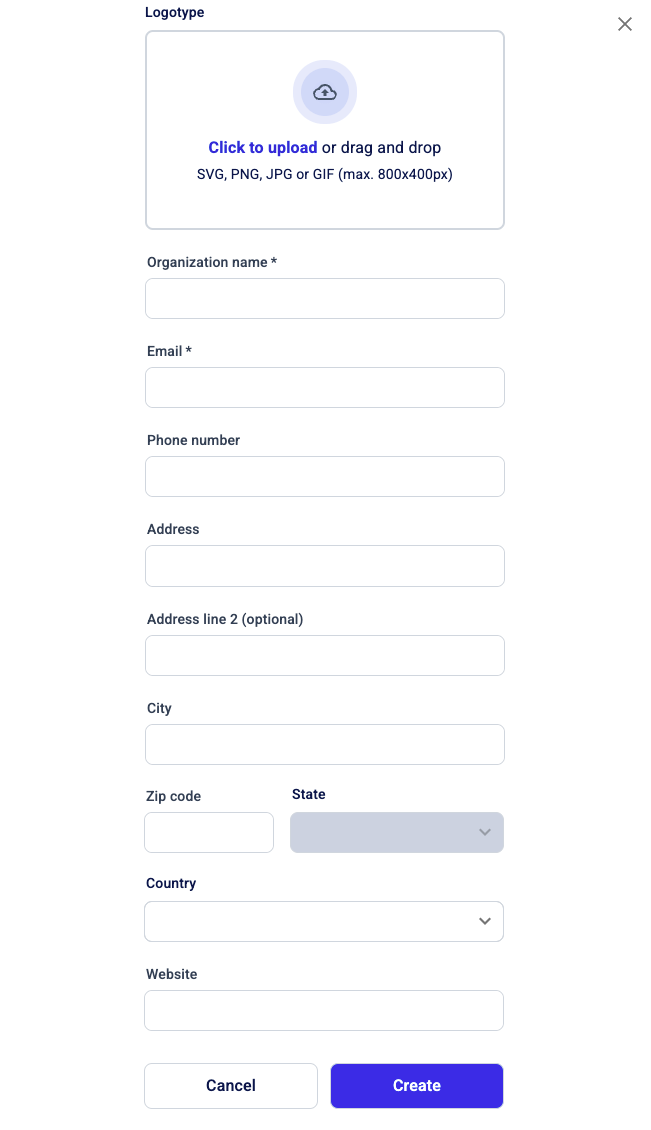
- If you are representing a company and need these details recorded in the audit report as well, toggle the I represent a testing/auditing organization and fill in the company details.
When finished, click Create
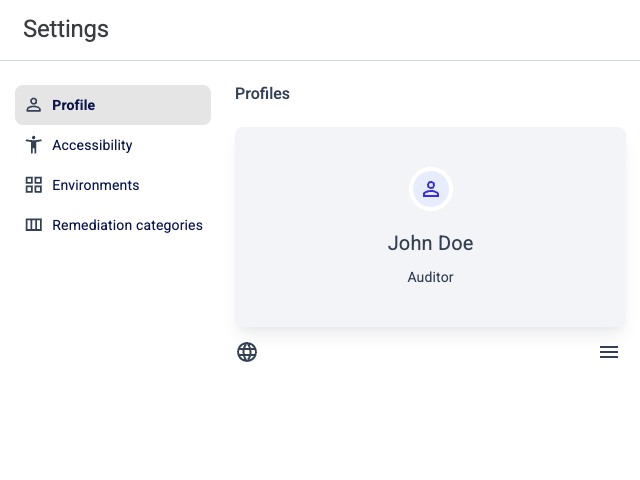
- The account profile is displayed under Profiles and will be available to selected when you create an audit.
Modify a user profile
To edit a user profile:
- On the left-hand side navigation pane, go to Settings >
 Profile.
 - Click the
 Profile settings menu next to the profile that you want to modify and then click Edit profile on the shortcut menu.
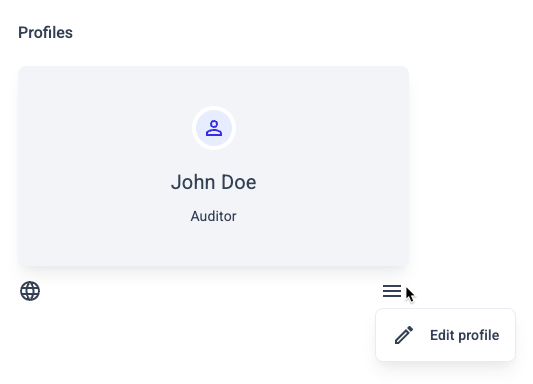
- Update the profile details, as needed. For more information about the operations you can perform at this stage, see Create a user profile.
When finished, then click Save.
Delete a user profile
Currently, Accessibility Tools does not not support multiple profiles, so you cannot delete an existing user profile. Until multiple profiles are supported, the only available functionality is to modify an existing profile.